


Campus France: The complete guide for EDAM students (Visa)

Updated: Jul 10

Step 1
Open https://pastel.diplomatie.gouv.fr/etudesenfrance/dyn/public/authentification/login.html?codeLangue=EN and select your country.Create your account and complete all required personal information.

Step 2
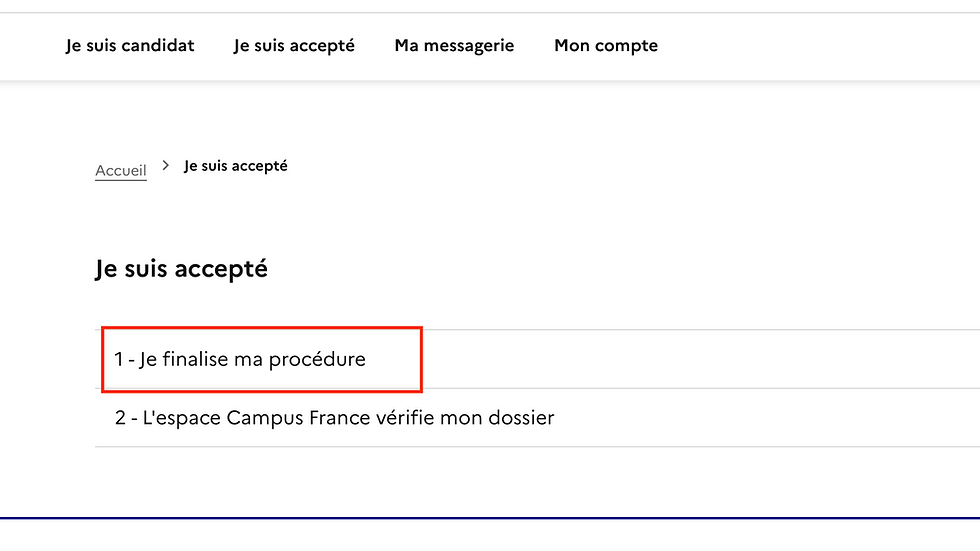
Then, in the top menu, choose “Je suis accepté” (I have been accepted).

Step 3
On the “Je suis accepté” page, click “1 – Je finalise ma procédure.”
Step 4
In “1.1 – Je choisis mes projets d’études,” select“Une acceptation papier reçue en dehors de l’application Études en France,” then click “Ajouter +”.

Step 5
In “1) Je sélectionne le cas qui me concerne, select“Je suis dans un autre cas” and choose “Formation Français Langue Étrangère.”
In “2) Je décris ma formation,” tick “Je n’ai pas trouvé ma formation dans le catalogue” and enter in free text:Français Langue Étrangère (FLE) – Intensif 20 h/semaine(tip: copy the title exactly as shown on your enrolment certificate).

Step 6
Choose the host institution6.1 Click “Rechercher un établissement français” (Search for a French institution).6.2 Type EDAM PARIS and click “Rechercher.”
6.3 It is normal if EDAM does not appear in the search results.
Scroll down using the right-hand scrollbar to reveal the manual entry fields.
l Institution: ECOLE DE DESIGN DE L’ART ET DE MANAGEMENT (EDAM)
l City: Paris
Then click “Enregistrer” (Save).


Step 7
Course datesEnter the start date and end date exactly as shown on your EDAM Enrolment Certificate (format dd/mm/yyyy).Tip: do not change the dates. If your certificate lists several modules, enter the dates of the programme you booked.

Step 8
“Enter my motivation for this project”
Write your study plan carefully.
Cover:
Current situation (French level, studies/work).
Learning plan in France (A0 → B2/C1, pace and timeline).
After-French plan (degree/major in France, timeline).
Career plan (return home or concrete professional goal).
Why EDAM PARIS — rephrase in your own words (don’t copy):
Central Paris location (2 min from Bastille) for easy access and immersion.
Small groups, native teachers, balanced training of the four skills with regular feedback.
Full-time 20 h/week (Intensive Plus), compliant with VLS-TS requirements.
Qualiopi-certified school (quality processes and continuous improvement).
Clear pathway A0 → B2/C1 with workshops and DELF preparation.
Modern facilities, international atmosphere, many chances to practise outside class.
When finished, click Enregistrer (Save).

Step 9
Upload your official EDAM enrolment certificate
Click Add a new document and upload the EDAM Enrolment Certificate (the official paper we send only after your file is complete and full tuition is paid).
Accepted formats: PDF / JPG / PNG. Max size 500 KB. Make sure it is clearly readable.
In the comment, write e.g.: “EDAM Enrolment Certificate – [First Last]”.
Do not upload invoices, quotes, e-mails, or brochures here — only the official certificate.
Reminder: this certificate is issued after you finish the full EDAM registration (signed form + all documents + full payment).

Step 10
Enter your personal information
Click “1.2 – I enter my personal information” and carefully fill out every section
Make sure no field is left blank and save. The status should change from Incomplete to Complete.

Step 11
Check everything is complete and confirm your choice
Click “1.3 – I check that everything is complete and I confirm my choice.”
Review all sections (programme, host school, dates, motivation, attachments).
Click Confirm / Submit my file (label may vary).
Your status should change to Submitted / Under review.
Once submitted, you usually can’t edit the file unless you withdraw it or ask Campus France to reopen it.

Your Campus France file is now ready to be checked.
Read through each section one last time, save your changes, and make sure you have actually submitted your file. Also remember to keep an eye on your inbox (and spam folder) for any messages from Campus France.
If you have any questions, or if you are missing a document from us, the EDAM team is here to help. We reply quickly.
Not registered yet?
Take a look at our intensive French as a Foreign Language (FLE) programmes in the heart of Paris.

Comments